
Feeds let you add RSS or ATOM feeds so you can continuously update your affiliates and/or customers on changes you have made to your offer or content. This provides a simple and easy way to keep your subscribed affiliates and customers updated without having to create individual news items.
Adding a Feed
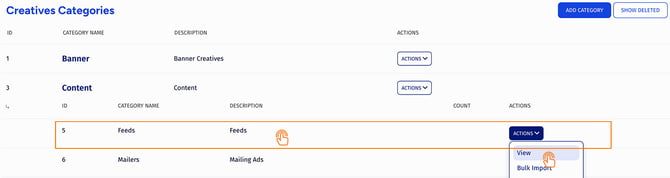
Click the Click the Content category to display existing Content creative types. Next, click the View button from the actions dropdown menu to be taken to the page displaying available feeds.
Understanding the Embedded, Downloadable Videos, and Feeds Features
Feeds Feature
The Feeds feature lets you add RSS or ATOM feeds to continuously update your affiliates and customers about changes to your offers or content. This is a simple and efficient way to keep subscribers informed without creating individual news items.
Adding a Feed
-
Access Content:
-
Navigate to the Content category to view existing creative types.
-
Click the View button in the actions dropdown menu to see available feeds.
-
-
Add a New Feed:
-
Click the Add Creative button to open a setup pop-up.
-
Fill out the following fields:
-
Name: Give your feed a name.
-
Type: Select whether your feed is powered by RSS or ATOM.
-
Enabled On: Choose the customers of an offer (or all offers) to whom this feed will be sent.
-
Publish Date: Set the date when the feed will be sent out.
-
Default Group: Categorize the feed under a creative group for organization.
-
-
-
Finalize Setup:
-
Once all fields are completed, click Add Creative to add your new feed.
-
The feed will now appear in the "Feeds Creative" section alongside other available feeds.
-
Activating a Feed
Before your new feed can be distributed, you need to create a SHOW rule. Here’s how:
-
Add a Rule:
-
Click the Actions button for the feed and select Add a new rule from the dropdown menu.
-
On the next page, click the Add Rule button.
-
-
Set the Rule Type:
-
Select SHOW from the options dropdown.
-
-
Schedule Distribution:
-
The feed will be automatically sent out on the publish date specified during creation.
-
Once the SHOW rule is created, your feed will be live and ready to update affiliates and customers.
For more information on rules in Trackfinity, please refer to the Rules article.