
Understanding the Embedded Videos Feature
The Embedded Videos feature in Trackfinity allows you to upload videos that affiliates can embed into their webpages, helping them effectively promote your offers. Once you upload a video, Trackfinity automatically generates a tracking link and embed code for your affiliates to use.
Uploading a Downloadable Video
Follow these steps to upload and manage downloadable videos:
-
Access Content:
-
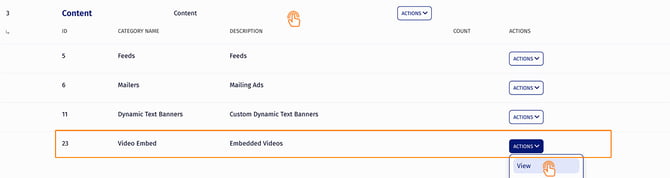
Go to the Content category to view existing creative types.
-
Click the View button from the actions dropdown menu to see the available downloadable videos.
-
-
Add a New Video:
-
Click the Add Creative button to open a setup pop-up.
-
Fill out the following fields:
-
Name: Enter a name for your video. This is what affiliates will see.
-
Video URL: Provide the URL of the video you’re uploading.
-
Type: Select the video’s length/type (e.g., Trailer, 30-Second Video, 2-Minute Video, or 5-Minute Video).
-
Thumbnail URL (Optional): Add a URL for the video’s thumbnail image.
-
Description (Optional): Write a short description for affiliates.
-
Tags (Optional): Tag your video for easy categorization.
-
Embed Tag (Optional): Choose an embed option (e.g., Flowplayer, iFrame, or direct embed).
-
Enabled On: Select an offer (or all offers) where this video will be available.
-
Publish Date: Set the date when the video becomes available.
-
Default Group: Assign the video to a creative group for organization.
-
-
Displaying an Embedded Video
Before affiliates can use your new embedded video in promotions, you need to create a SHOW rule. Here’s how:
-
Add a Rule:
-
Click the Actions button for the video and select Add a new rule from the dropdown menu.
-
On the next page, click the Add Rule button.
-
-
Set the Rule Type:
-
Select SHOW from the options dropdown.
-
-
Choose the Scope:
-
Specify whether the video should be enabled for selected affiliates, commissions, and offers, or for all of them.
-
Once the SHOW rule is created, affiliates can access the link code for the video from their Creatives page.